


See your Support cases
Learn how to see the cases you've raised with Workshare's Customer Support team. If you're an administrator for the Support Portal, you can see all the cases associated with your corporate account.
- Go to the Support Portal at https://wsportal.force.com/help/s/login/
- If you've logged in before, click Sign in with Workshare. If this is your first time using the Support Portal, register for access here: http://go.workshare.com/support-self-service-request.html
- In the portal, select the My Account tab.
- Click Cases.
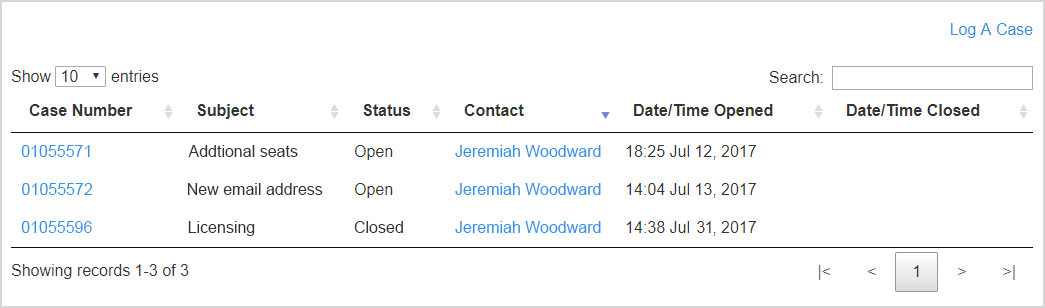
Your cases are listed here. If you're an administrator for the Support Portal, you'll see all the cases associated with your account. Click a case number to view the case.
Environments